



Get answers, not
runaround.
Search setup guides, firmware fixes, and support resources by entering keywords below.

Quick Start
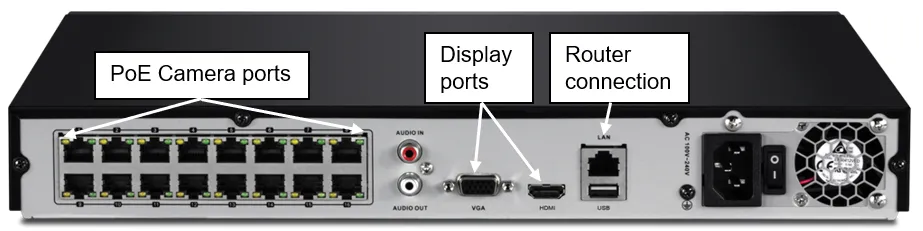
Commander: Connect cameras to PoE ports, display, mouse and router.
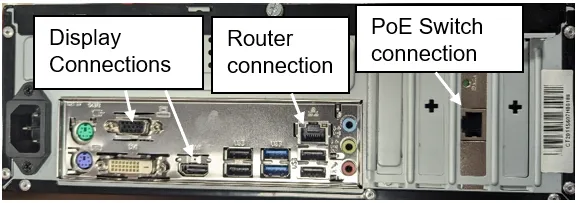
Patriot/Admiral: Connect PoE switch, router and mouse, monitor.
When prompted, launch Settings Wizard.
-
Create and confirm a new password.
-
Set date, time and NTP server.
-
Enable PNP (will give IP addresses to cameras automatically). Enable DHCP.
-
Network Port settings (only change if required)
-
DDNS (only use if P2P is NOT an option) Reboot if prompted.
Finally a QR code will be displayed to sync NVR with mobile phone app.
Adding cameras (If unsure if cameras are compatible, contact technical 02392488302)
-
With cameras already connected, right click and login to NVR. Browse to IP Camera > IP Camera management.
-
Top section shows cameras detected, bottom section shows cameras added.
-
Select camera from top list and press "Add Selected", camera will show in bottom box. If not online within 5 minutes, click edit and check camera password is correct (if unsure, call technical)
Recording Schedule
-
Login to NVR, go IP cameras > Recording Schedule.
-
Use mouse to highlight days and times required for recording and type of recording (motion/constant).
Need Additional Help?
Our dedicated support desk is available to assist you 24/7.
Popular Articles
Frequently viewed documentation and technical guides.


