






Get answers, not
runaround.
Search setup guides, firmware fixes, and support resources by entering keywords below.
Set Output Devices
(Wire the relay accordingly)
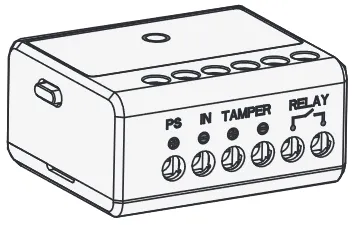
1. Open DMSS, press three dots to right of Hub, then device details.
2. Scroll to the Wireless Relay, select three dots and device details.
3. Select pencil icon at top right and Output type.
4. Choose normally open or normally closed.
NOTE: When a trigger signal is generated, the output state of the relay will change from "closed" to "open" or "open" to "closed".
5. Select Output mode.
NOTE: Bistable will change state upon an electric trigger. Pulse will allow to set a duration once the trigger is activation.
Event Linkage Control
1. Open DMSS, press three dots to right of Hub, then device details.
2. Scroll to the Wireless Relay, select three dots and device details.
3. Select pencil icon at top right and select "Scenario Settings" and "Create Scenario"
4. Enter Scenario Name, Choose Linkage Area/Linkaeg mode and save.
Schedule Control
1. Scroll down to relay, press 3 dots to right and select device details.
2. Press pencil icon top right, select scnario settings.
3. Select scheduled linkage scenario.
4. Enter scenario name, click enable, set time and repeat date, click save.
Manual Control
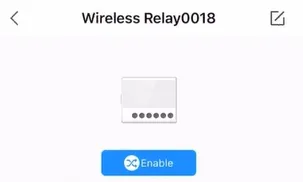
1. Scroll down to relay, press three dots and devcie details to see status of relay.
2. from here you can select Disable or Enable.
Control via panic button
1. Select panic button, press three dots-device details.
2. Press pencil icon top right.
3. Select operation mode and control.
4. Choose scenario settings.
5. Select create scenario and select relay to link.
6. Set scenario name, choose control method and save.
Control via keyfob
1. Select keyfob button, press three dots-device details.
2. Press pencil icon top right.
3. Select operation mode and control.
4. Choose scenario settings.
5. Press create scenario and choose relay.
6. Make scenario name, select control method and save.
Need Additional Help?
Our dedicated support desk is available to assist you 24/7.
Popular Articles
Frequently viewed documentation and technical guides.