






Get answers, not
runaround.
Search setup guides, firmware fixes, and support resources by entering keywords below.
Change Video Mode
NOTE: You would require a working static image already from the camera to change video mode.
1. With viper camera working on Viper DVR, right click live view select PTZ control.
2. Click the “+” iris, which should bring up the OSD (on screen display) menu.
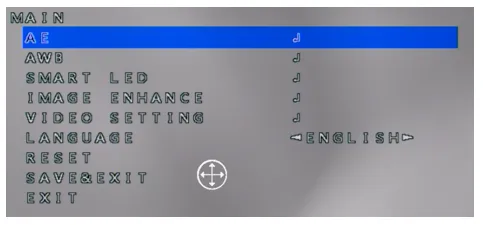
3. Using the navigational buttons, navigate to video setting and enter the menu by clicking “+” again.
4. Navigate down to video format, then toggle left and right through the video modes (TVI, CVI, AHD, CVBS). Press “+” on desired format and again to confirm.
Need Additional Help?
Our dedicated support desk is available to assist you 24/7.
Popular Articles
Frequently viewed documentation and technical guides.