




Get answers, not
runaround.
Search setup guides, firmware fixes, and support resources by entering keywords below.
PTZ: Setup Smart Tracking
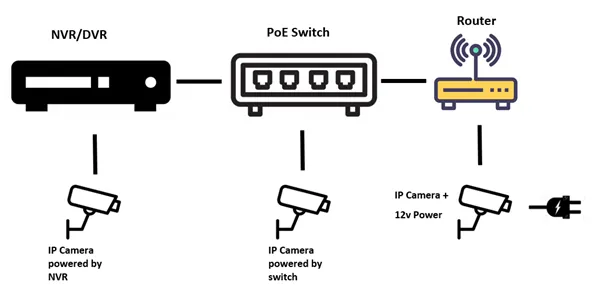
1. With PTZ camera connected to PoE port of NVR, connect laptop to the same router wifi or via LAN cable. If no router in use, connect laptop direct to LAN port on NVR.
2. Open Microsoft Edge and login into the NVR using its IP address (Found under Network settings > TCP/IP on NVR).
3. Once logged into NVR, browse to Function Panel > Camera:
4. Click on the “Settings” cog at the camera
5. Login into the camera (Default login: User: Admin Password:123456)

6. Select PTZ function
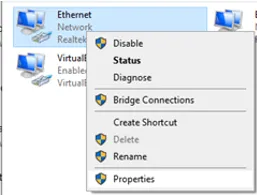
7. Move camera to desired position using direction controls.
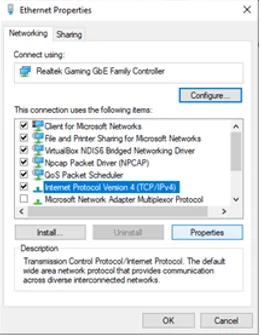
8. Click create and then give preset a name:
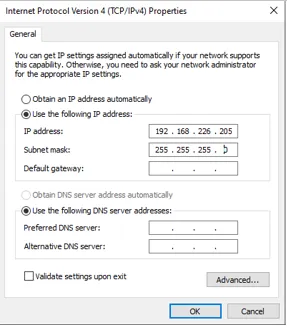
9. Under “Event” select Region intrusion.
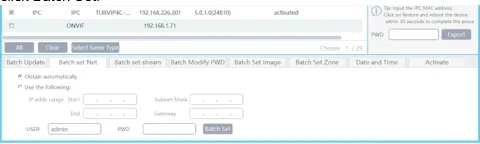
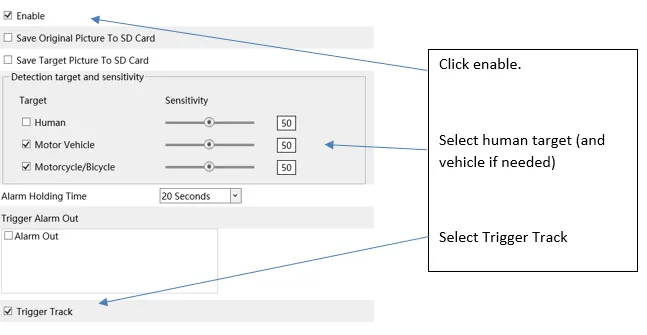
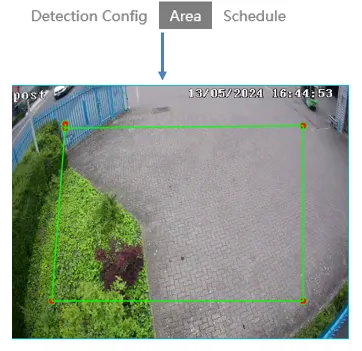
10. Click “Area” and create an area intrusion on the camera image:
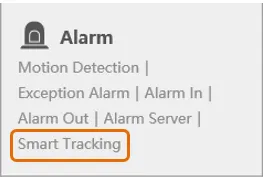
11. Select “Smart Tracking” under Event
12. Set tracking mode to “PTZ Tracking Priority”. This will save automatically.
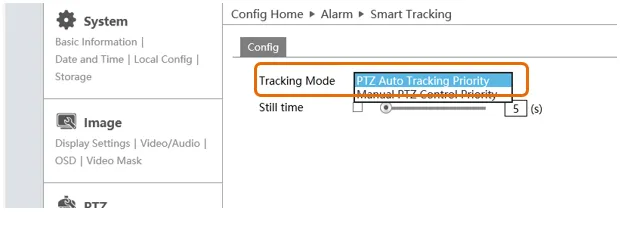
The camera will now track humans who cross the intrusion area.
Need Additional Help?
Our dedicated support desk is available to assist you 24/7.
Popular Articles
Frequently viewed documentation and technical guides.